If you are under administrator control your Account Administrator will determine your account preferences.
To view your account information, select the Settings Menu button. Click the Account Menu option, here you can change your general account information and password. Two submenus are available: Account Info and Change Password.
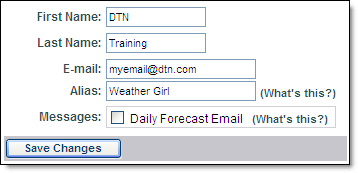
Within the Account Info submenu, set the name, email address and alias associated with the account. You can also sign up to receive a daily forecast email for your default location.
Click the Save Changes button. Your account will not be updated if you do not click Save Changes.
You can change the password you use to log in to MxVision WeatherSentry
Online
Click the Change Password submenu.
Enter the password you currently use in Current Password.
Choose a new password and enter it in New Password.
Type the new password a second time in Confirm New Password to verify the password was entered correctly.
Click Save Changes to update the password.
If you forget your password, click the Need help signing in? link on
the MxVision WeatherSentry Online
You can also contact Telvent Customer Service by clicking the Customer Service button.
 MxVision WeatherSentry Online