There are two distinct Menus available in the MxVision WeatherSentry
Online
Moving between these two separate Menus, you can access general weather content and change your settings.
|
|
Access the general weather content from the Home Menu button. Menu options may vary by industry and edition. The default Home page is selectable. |
|
|
Change your account information, default Home page and locations as well as manage slide shows and weather favorites using the Settings Menu button. Menu options may vary by industry and edition. If you are under administrator control, the Settings Menu button is available only to the Account Administrator. |
|
|
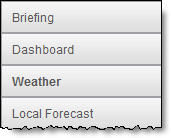
Menu options are found under the Home and Settings Menus. The Menu options are dark gray buttons located along the left of the content display. From the Menu options you can select categories of content to view. The selected Menu option is colored red. |
|
|
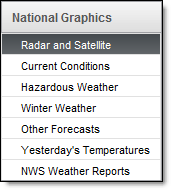
Some of the Menu options located under the Home and Settings Menus have submenus available for selection. The selected submenu is highlighted in red. |
|
|
Most Menu options and submenus, when selected, will load thumbnails which are displayed in the content display. Click a thumbnail to select specific content. |
|
|
Some thumbnails are displayed as a folder. Folders represent an additional series of thumbnails. Select the folder and continue to select thumbnails until the content is displayed. |
|
|
Some thumbnails, when selected, will open a selection map. Click over the state, zone or region of interest to view the text data. |