 Some users may see Custom Layers in
addition to those discussed.
Some users may see Custom Layers in
addition to those discussed.Some users may see Custom Layers in
addition to those discussed.
|
|
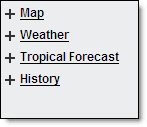
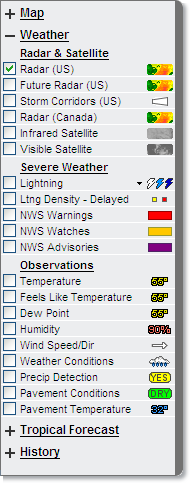
Various layers within five separate menus are available under the Local Radar Menu option. The layer menu includes Map Layers, Weather Layers, Rainfall Estimates, Tropical Forecast and Storm History. Selected layers are viewed in the content display.
Access the layers by clicking one of the menus. Only one menu will be open at a time. If you open Map Layers the other layer menus will be minimized. However, if data was selected from a menu, that data will still be visible on the map even when the menu is minimized.
To view a layer select the appropriate menu and click the check box in front of the layer name. The layer data will be visible in the content display. Click the check box a second time to remove the layer from the content display.
Any layer not available will have the check
box grayed out. Not all map layers are available at all zoom levels, nor
are all map layers available at the same time, as they would clutter the
map. Some layered data is available only in specific editions of MxVision
WeatherSentry Online
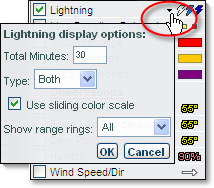
Some layers have additional display options available. To set your preferences click the arrow next to the layer name.
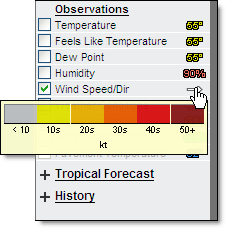
Hover over the symbol in the layer menu to view the legend for that layer.
Select the Play icon to animate layers.
|
Selected Data |
Animation |
Interval |
Frames |
|
US Radar, Satellite and Lightning (Satellite will not animate) |
1 Hour |
5 Minutes |
13/14 |
|
US Radar and Lightning |
1 Hour |
5 Minutes |
13/14 |
|
US and Canadian Radar and Lightning |
1 Hour |
10 Minutes |
6/7 |
|
US and Canadian Radar |
3 Hours |
10 Minutes |
18/19 |
|
US Radar and Satellite |
3 Hours |
30 Minutes |
6 |
|
Satellite and Lightning (Satellite will not animate) |
1 Hour |
5 Minutes |
13/14 |
|
Future Radar |
1.5 Hours |
5 Minutes |
19 |
Once you have selected the layers to view on your map, you can leave the Local Radar page and your preferences, including; geographic location, open menu, selected layers, animation state and selected animation layer will all be remembered automatically when you return.
The only exception being when you enter Local Radar via the radar image on either the Dashboard or Briefing page. The map region viewed on either of these pages is the region which will be loaded, replacing the geographic location previously loaded. All other information such as selected layers, animation state, etc. will remain.
The Account Administrator is able to see and use the Save As Default button to set the Default state of the layered map for the initial display of sessions.

This Default setting is used by both the Account Administrator and users under administrator control. All subsequent sessions will initially display the Default layered map as last saved by the Account Administrator. Changes made within the layered map by users under administrator control will not be saved after sign out. This includes preferences set within layers themselves.
 MxVision WeatherSentry Online